
 Australian Dollars
Fix Apple CarPlay and Android Auto Problems with Laser
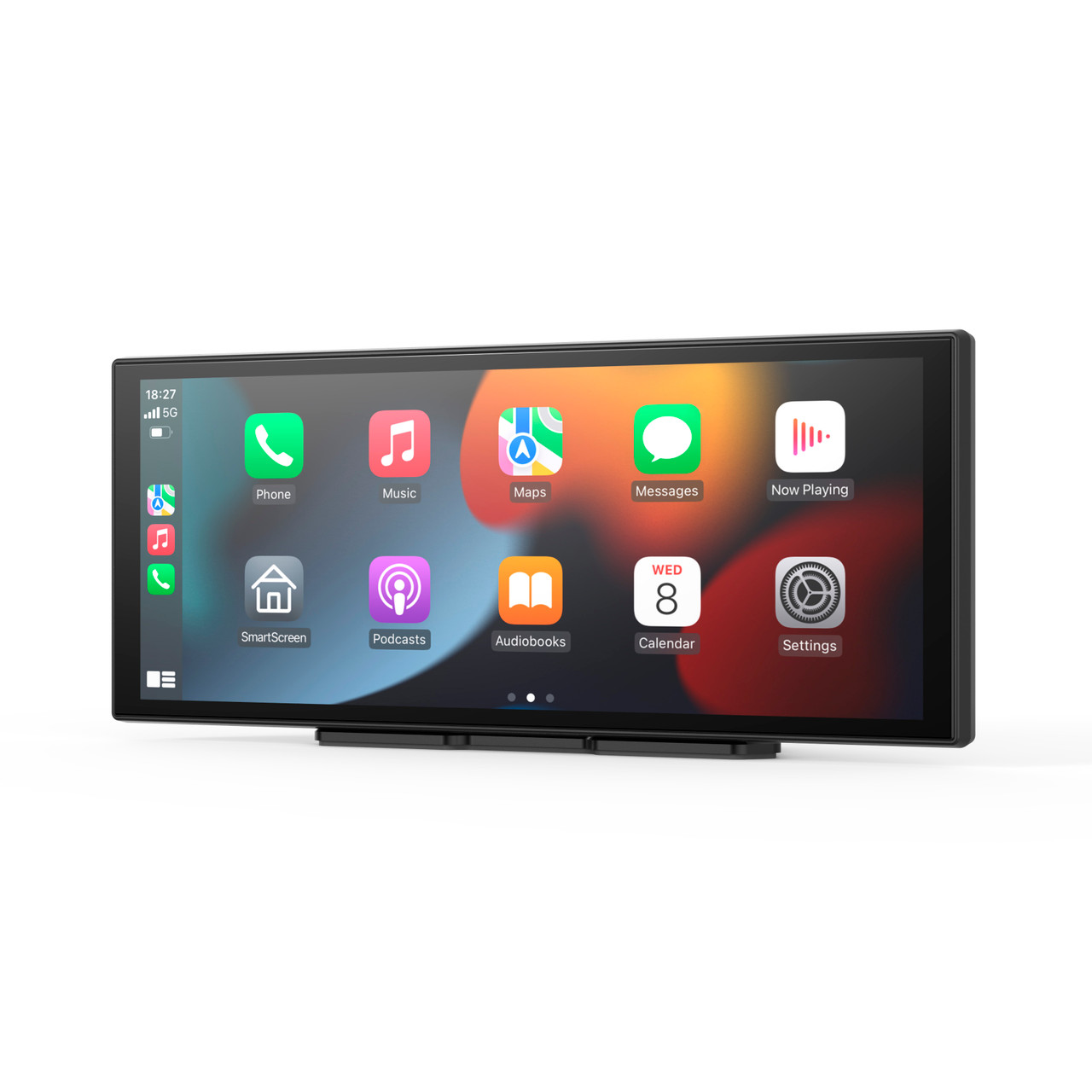
Apple CarPlay is great when it just works. You start the car, maps appear, music plays, calls are hands free, and everyone in the car is calm. Then the screen freezes, drops back to the basic radio, or disconnects mid turn. It feels random and it is annoying.
CarPlay problems are almost always attributable to a few key issues - phone type (mostly the age of the phone), phone operating system version, software version of your CarPlay or Android Auto, wireless settings on your phone (including the number of connected devices), which USB port in the car you are using, and the power source.
It is important to note that these issues happen with in car OEM (factory) CarPlay as well as aftermarket in vehicle units (like single DIN and double DIN devices) and, lastly, add on devices like the products Laser sells.
This guide walks through the most common reasons Apple CarPlay and Android Auto disconnect and shows some common remedies and fixes which may help with the connection and stability of the device.
Quick fix checklist
Before you start changing cables or settings, run through this simple checklist:
- Restart your iPhone, then restart the car so the head unit fully reboots.
- Update your Apple iPhone iOS to the latest version in Settings → General → Software Update.
- If your car or head unit supports updates, install the latest firmware.
- If you use a cable, try another data capable cable, not an old or damaged one.
- If you use wireless CarPlay, reset your Bluetooth and Wi Fi connections.
With Wi Fi and Bluetooth, if you have a lot of connected devices then reduce or clear the number of devices:
- For Bluetooth this can include old headphones, hire cars, cameras, smart watches, and smart home products in your Bluetooth settings list.
- For Wi Fi this can include hotspots which you no longer use, unused smart home devices, audio equipment, and so on.
Check the physical setup
If CarPlay still drops out after that, the next step is to look at the physical setup. Start with simple things like cables and power.
- For portable screens using a 12 V DC (cigarette) plug for power: the 12 V power plug may not be seated correctly (or the 12 V socket could have obstructions), or there may not be enough power (current) coming through - especially if other devices are sharing the same socket or circuit.
- For USB dongles it gets more complicated: some cars have more than one USB port with varying functions. So if it does not work on one port (like the one in the glove box), it may work on another port (like the one in the centre console). Some USB A and USB C ports may also be recessed, meaning the USB dongle does not sit far enough in to establish a firm contact. Even if you can connect it, if it is not well seated then a bumpy road or a knock to the USB dongle can cause a temporary disconnection.

Why Apple CarPlay / Android Auto does not pair, freezes, drops out, is slow to respond, sound drops off, or apps freeze
In real world use, most issues come from one or more of these:
- Your car just is not compatible. Some car brands (for example: BMW, Alfa Romeo, Chevrolet, Ford USA versions, and some Toyotas made in Thailand) are simply not that compatible with wireless CarPlay dongles. There can be a multitude of reasons for this.
- Out of date phone operating system, head unit software, or USB dongle software.
- A worn or low quality cable in wired setups (some older USB cables do not carry enough power).
- Bluetooth and or Wi Fi conflicts in wireless setups - this is one of the most common issues.
- Power dips when the car is under load or the phone battery is low.
- A flaky USB port or head unit fault.
- The USB dongle becomes dislodged temporarily when on bumpy roads.
- There is insufficient power coming from the USB port.
- The wrong USB port is being used (when a car has more than one USB port).
- The CarPlay USB dongle gets too hot.
You cannot fix every hardware fault with accessories, but as a process of elimination you can remove some of the known issues, such as an excess of connected Bluetooth or Wi Fi devices.
Step 1 - Clean up the basics
Restart the phone and the car. Power both off fully, wait a few seconds, and start again so they perform a clean handshake.
Update software. Check your iPhone updates first. Then, if your vehicle offers updates (often through the manufacturer app or dealer), install those too. A lot of “random” CarPlay behaviour disappears once both sides are up to date.
If things are still unstable after this, it is time to look at the hardware you control, starting with the cable, USB port, and power source.
Step 2 - Wireless CarPlay: check your Bluetooth and Wi Fi
Wireless CarPlay is brilliant once it is set up properly. Your phone stays in your pocket or on a mount, and CarPlay just appears a few seconds after you start the car.
First, clean up the wireless environment.
- On your iPhone, toggle Bluetooth off and on.
- Toggle Wi Fi off and on.
- Remove old or unused Bluetooth devices from the list.
- In Settings → General → CarPlay, forget cars you no longer use and re add your current one.
How can Laser help get your CarPlay setup working?
Laser is an Australian company with local support and real world testing on Aussie roads. We have tested pretty much all the variations of CarPlay on the market. We have tested products on many different brands of cars, phones, operating systems, and varying devices - some overladen with apps and Bluetooth devices, and some phones which are brand new out of the box.
What we, and others in the industry, know is that there are a myriad of challenges when it comes to CarPlay and Android Auto devices. Even new cars which already have CarPlay built in can have drop outs, screen freezes, slow acquire times, and many other issues.
Our unique solution is to offer our “Connection Guarantee”. If you have tried all of the suggestions above and it still does not work, then we will swap out your unit for another version that uses a different chipset. If none of our versions work, then you pretty much know that you have tested all the popular chipsets, so buying a different brand, type, style, or design is unlikely to change anything.